
UGREEN 8K@60Hz HDMI Displayport KVM Switch 3 Monitors 2 Computers, Aluminum
3.9Editor score
8K@60Hz resolution support
Supports three monitors
Aluminum construction
Desktop controller included
This guide compares the top KVM switches for 2026, evaluating HDMI and DisplayPort models for multi-monitor setups, USB sharing, and seamless switching.
KVM switches allow users to control multiple computers with a single set of peripherals. They simplify workspaces by reducing cable clutter and hardware costs while maintaining high display quality and fast data transfer rates for productivity.
We compared ten real KVM models based on video resolution, port count, switching methods, and compatibility. Each product was evaluated for stability, build quality, and suitability for home offices, creative workstations, or IT environments.
This guide shows detailed reviews, pros, cons, and specs for each option. Prices may change over time, so please verify current listings before purchasing to ensure you get the best value for your specific setup needs.
3.9Editor score
4.5Editor score

4.2Editor score
The following table provides a side-by-side overview of each model, highlighting key specifications, video capabilities, port configurations, and unique features to help you choose quickly.




The UGREEN KVM switch supports triple monitors with up to 8K@60Hz resolution. It offers a solid aluminum body and includes a desktop controller for cleaner setups. This model is ideal for professionals needing high fidelity and multiple displays.
We may earn a commission when you buy through this link, at no additional cost to you.
It features two DisplayPort 1.4 ports and one HDMI 2.1 port, each supporting high bandwidth. USB 3.0 ports allow fast sharing of peripherals. The unit includes all necessary cables, making setup straightforward for triple-monitor configurations.
However, both PCs must support three displays to use all monitors. Hotkeys are not supported, so users rely on buttons or controllers. Power is required, and it adds cost compared to simpler models.
Buy this if you need triple monitors with high resolution and are willing to pay for premium build. It is well suited for design studios or IT workstations where display quality is critical.
This unit lets you share three displays across two computers with a single switch.
The aluminum body provides durability and helps dissipate heat during extended use.
We may earn a commission when you buy through this link, at no additional cost to you.
The Hearvo KVM supports 4K@60Hz resolution with two HDMI inputs. It includes four USB 3.0 ports and a wired remote for switching. Its adaptive EDID helps ensure stable image transmission across systems.
We may earn a commission when you buy through this link, at no additional cost to you.
It does not require an external power supply, which simplifies installation. USB devices are detected automatically, and data transfers up to 5Gbps. The remote keeps the desktop clean and makes switching faster.
This model supports only one monitor, so it is best for simpler setups. It lacks hotkey toggles, so you must use buttons or remote. Cables are included, but you must confirm compatibility with your devices.
Choose this for compact home office use where cost and simplicity matter. It works well for shared peripherals and dual PC setups that do not require multiple displays.
Powered via USB, this unit reduces cable clutter and removes the need for an outlet.
Automatic detection helps prevent window rearrangement when switching between computers.
We may earn a commission when you buy through this link, at no additional cost to you.
This DisplayPort KVM supports up to 4K@144Hz resolution and dual monitors per PC. It includes four USB 3.0 ports and an external controller. It is ideal for gaming or creative workflows needing smooth visuals.
We may earn a commission when you buy through this link, at no additional cost to you.
Each computer needs two DP ports plus USB. A 12V adapter ensures stable operation for peripherals. The controller allows remote access without cluttering the desk, improving workflow efficiency.
DP cables are not included, so you must supply them separately. It lacks hotkeys, requiring physical switching. The power requirement may complicate cable management compared to bus-powered units.
Buy this if you need high refresh rates and dual displays on both machines. It suits gamers or video editors who prioritize smooth motion and color accuracy across multiple screens.
Supporting up to 144Hz allows for smooth motion in games or video editing tasks.
Place the switch in a hidden spot and use the remote for clean desk setup.
We may earn a commission when you buy through this link, at no additional cost to you.
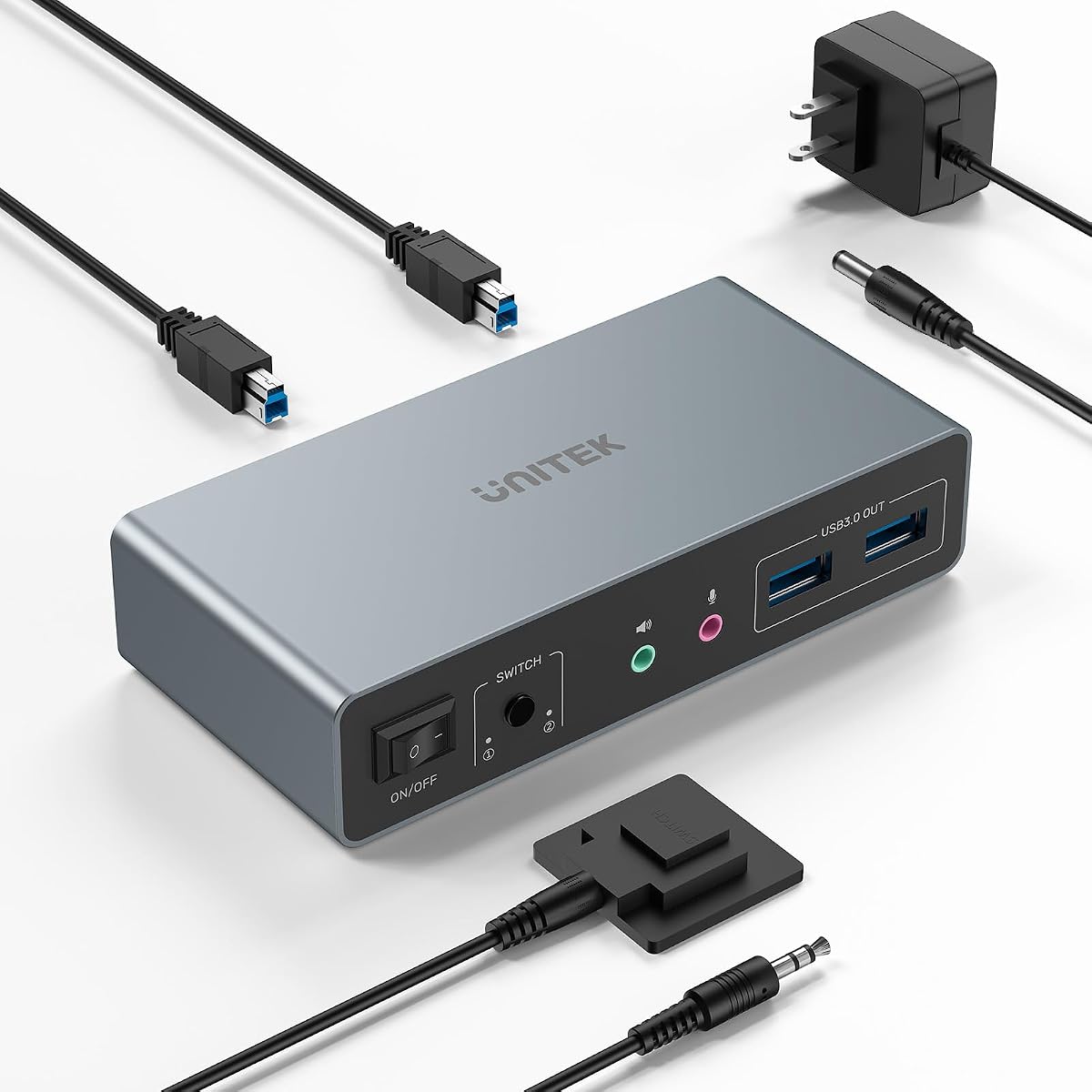
The Unitek KVM supports dual monitors with both HDMI and DisplayPort inputs. It provides 4K@60Hz resolution and includes USB 3.0 ports plus a desktop controller. This flexibility makes it suitable for diverse setups.
We may earn a commission when you buy through this link, at no additional cost to you.
You can connect PCs with mixed video outputs. The included controller keeps the desk tidy. USB devices transfer data at 5Gbps, supporting fast file movement and peripheral sharing between machines.
It is designed for desktops only, not laptops. The power adapter must be connected, which may limit placement. Cables are included but verify lengths before setup to avoid reach issues.
Choose this for versatile environments where PCs differ in video ports. It works well for home offices or labs requiring dual displays and flexible connectivity without buying multiple adapters.
Support both HDMI and DisplayPort so you can mix older and newer PCs easily.
USB 3.0 ensures quick file transfers and smooth operation of shared peripherals.
We may earn a commission when you buy through this link, at no additional cost to you.
This HDMI KVM switch allows two computers to share three monitors at 4K@60Hz. It includes four USB 3.0 ports and supports extended or copy display modes. It is designed for users needing three screens per system.
We may earn a commission when you buy through this link, at no additional cost to you.
Each PC must connect via three HDMI cables. The 12V adapter stabilizes USB devices like hard drives. Switching options include panel buttons or external controllers to maintain desk cleanliness.
Without PC support for three screens, extra monitors won’t activate. There are no hotkey toggles. The power requirement adds to setup complexity compared to bus-powered alternatives.
Buy this if you require triple-monitor setups and have compatible PCs. It suits traders or creatives needing multiple displays without duplicating keyboards and mice across systems.
Share three screens across two PCs, extending workspace without extra peripherals.
External power ensures USB devices like external drives work reliably without drops.
We may earn a commission when you buy through this link, at no additional cost to you.
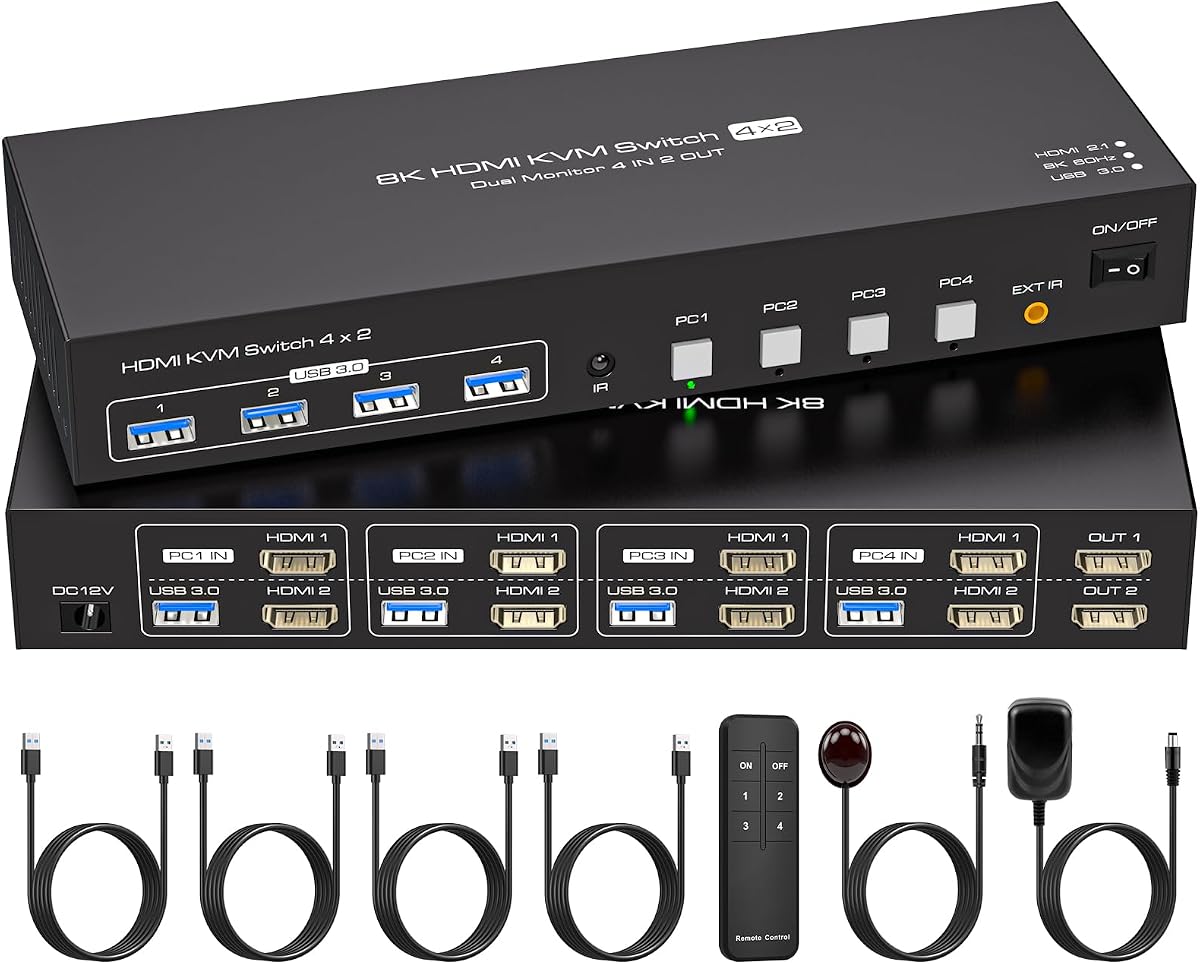
This KVM lets four computers share two monitors and four USB devices. It supports up to 8K@60Hz and includes EDID emulation to prevent window rearrangement. An IR remote provides quick switching without touching the unit.
We may earn a commission when you buy through this link, at no additional cost to you.
Each PC requires two HDMI ports. The external power supply stabilizes USB connections. LED indicators show active PCs, making it easier to track which machine is in control at any time.
The requirement for dual HDMI per PC limits compatibility. It is priced higher than single-monitor options. Hotkeys are not supported, so physical buttons or remote must be used.
Choose this for IT labs or test benches with multiple PCs. It works well where centralized control of several machines is needed without duplicating monitors or keyboards.
Manage four computers with one keyboard and mouse set, saving space and hardware.
Windows stay in place when switching, avoiding desktop rearrangement and lost work.
We may earn a commission when you buy through this link, at no additional cost to you.
The GL-RM10 allows remote control over Wi-Fi 6 with 4K video and two-way audio. It features a touchscreen interface and supports cloud or self-hosted options. This is ideal for remote support and labs without direct access.
We may earn a commission when you buy through this link, at no additional cost to you.
It can reboot machines via Fingerbot or ATX extensions. The device works on Windows, macOS, Linux, and mobile via app. Encrypted data transfer ensures secure access between systems across locations.
Initial setup requires network configuration and optional cloud service. It costs more than traditional KVM switches and lacks hotkey support. Local power and internet dependency must be considered.
Buy this for IT teams needing remote recovery without physical presence. It suits home labs where accessing machines across the network is more important than low latency local switching.
Reboot or reinstall OS remotely when software fails or systems are inaccessible locally.
Encrypted data transfer ensures your systems remain protected during remote operations.
We may earn a commission when you buy through this link, at no additional cost to you.
This HDMI KVM switch allows two computers to share two monitors at 4K@60Hz. It includes USB 3.0 ports and a desktop controller for easy switching. It supports Windows, macOS, and Linux systems seamlessly.
We may earn a commission when you buy through this link, at no additional cost to you.
Four USB ports support fast data transfer and peripherals. The controller keeps the desk tidy. HDMI 2.0 and HDCP compliance ensure stable streaming and high resolution visuals across monitors.
No EDID emulation may cause windows to reset when switching. Hotkeys are absent, so physical buttons are required. Power must be connected to ensure USB devices function reliably.
Choose this for dual-monitor home office setups needing 4K visuals. It works well when you want simplicity and a controller to avoid reaching behind the desk.
Control two displays across two PCs, increasing workspace and reducing duplicate gear.
Fast data transfer ensures shared drives and devices work quickly between systems.
We may earn a commission when you buy through this link, at no additional cost to you.
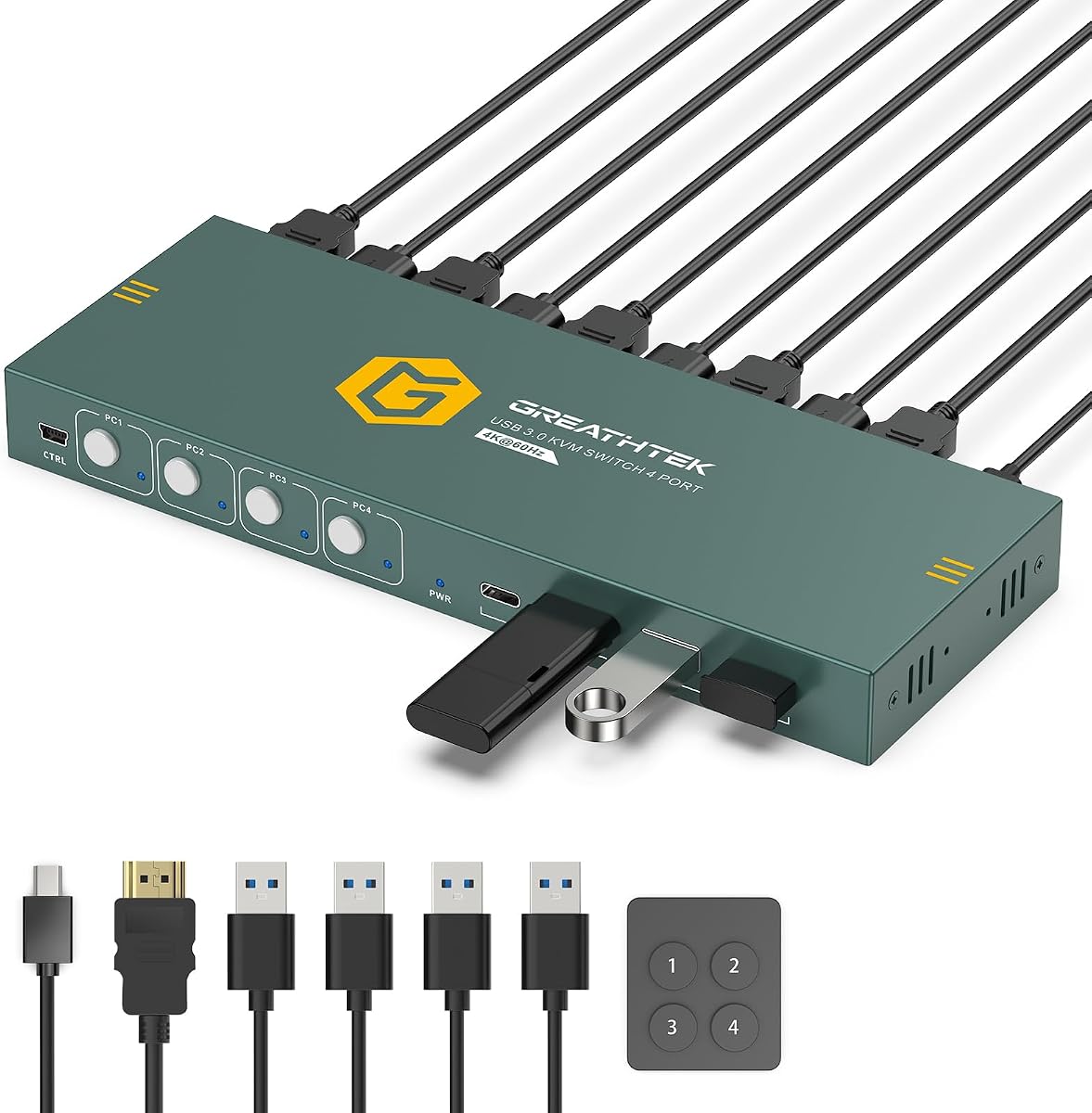
This KVM switch manages four computers on a single monitor with 4K@60Hz. It includes four USB 3.0 ports and a wired remote for quick switching. EDID adaptive detection ensures stable resolutions across systems.
We may earn a commission when you buy through this link, at no additional cost to you.
Each PC needs one HDMI and one USB cable. The package includes mounting hardware and cables. LEDs show active PCs, making it easy to track which machine is selected.
There is no support for hotkey toggles. You rely on front buttons or the remote. Power must be connected, which adds a cable to the setup.
Choose this for test benches or IT setups needing to switch four systems. It works well when space is limited and a single monitor is sufficient for all PCs.
Share one monitor and keyboard mouse across four machines to reduce clutter and cost.
Access switches from desk without reaching behind the PC or monitor for control.
We may earn a commission when you buy through this link, at no additional cost to you.
This HDMI KVM switch supports two computers sharing one monitor at 4K@60Hz. It includes USB 2.0 ports and a wired remote. It is compact, budget-friendly, and works well for basic home offices.
We may earn a commission when you buy through this link, at no additional cost to you.
No external power is needed. LEDs show active computers and switching is simple. It supports hot-swapping, letting you connect devices without rebooting, and reduces setup complexity.
USB 2.0 offers slower data transfer and 3.0. Hotkeys are not supported, so physical switching is needed. Mac compatibility may be limited, so check specs before buying.
Choose this if you want low cost and simplicity for two PCs. It works best for light usage where speed is less critical than affordability and compact design.
Save money while still getting 4K video and keyboard sharing for two machines.
No driver install is needed, so setup is quick and simple for most users.
We may earn a commission when you buy through this link, at no additional cost to you.
Selecting a KVM switch involves considering video ports, resolution support, USB speed, and switching options. The right model improves workflow and reduces clutter.
Check how many computers and monitors the KVM supports. Some models allow two PCs with one monitor, while others support triple monitors or four PCs with dual screens. Confirm your PCs have matching HDMI or DisplayPort outputs before buying.
Match the number of inputs to your PCs and outputs to your monitors to avoid compatibility issues.
Higher resolutions like 4K@60Hz or 8K@60Hz provide better clarity. Gamers may prefer 144Hz support for smooth motion. Ensure your monitors and PCs support these rates, otherwise the KVM will downscale the output.
Choose resolution that matches your displays to avoid wasted performance or blurry images.
USB 3.0 ports transfer data up to 5Gbps, ideal for hard drives and webcams. USB 2.0 is slower but sufficient for keyboards and mice. Check how many ports you need for all peripherals you plan to share.
Opt for USB 3.0 if you use storage devices; otherwise USB 2.0 may suffice.
KVMs offer buttons, wired controllers, or remotes. Hotkey support is rare but speeds up switching. If you prefer a clean desk, look for units with desktop controllers or remotes to hide the box.
Prioritize controllers or remotes if your KVM sits behind monitors or in hard-to-reach spots.
Some KVMs need external power adapters to stabilize USB devices like hard drives. Bus-powered units save cables but may struggle with high draw devices. Confirm if your setup can accommodate extra plugs.
Use externally powered KVMs when sharing power-hungry USB devices for reliability.
EDID helps the KVM retain monitor settings during switching. Without it, windows may rearrange or resolutions change when switching PCs. Not all models support this feature, so check specs if you use multiple monitors.
Look for EDID emulation if window stability across switches is important.
Most KVMs work with Windows and Linux. Some support macOS, others do not. Confirm compatibility before purchase, especially if you mix systems or use macOS with peripherals that require specific drivers.
Verify OS support to ensure your keyboard and mouse work smoothly on all systems.
Metal enclosures help dissipate heat and increase durability. Reputable brands offer better support and warranties. Read reviews to learn about real-world reliability, overheating, or cable issues over time.
Choose models with solid builds and clear support policies for long-term satisfaction.
Connect each computer to the KVM using the correct video and USB cables. Ensure you match the inputs and outputs to avoid signal issues. Plug peripherals into the KVM’s USB ports instead of directly into PCs.
Power the KVM if required using the provided adapter. Use the included controller or remote for quick switching. Check indicator LEDs to see which computer is active at any time.
Keep vents clear to prevent overheating and update firmware if available. Restart if the KVM stops responding. Store away from moisture and heat for long life.
Most KVM switches support desktops. Some models explicitly exclude laptops. Check product details to confirm laptop compatibility before buying. Using adapters may cause instability or flickering.
Most do not support hotkeys and rely on buttons or controllers. A few models may offer keyboard toggles. Check the specs to confirm if hotkey switching is included.
Some models include HDMI, DisplayPort, and USB cables. Others require you to supply them. Always check the package list to avoid buying extra cables after purchasing.
USB 3.0 KVMs with external power support external drives. Bus-powered units may fail with high-draw devices. Ensure your KVM has enough power for all peripherals.
Yes, but look for 144Hz support and low latency. Some models may introduce slight lag. Read reviews for real-world performance before buying for gaming.
Many KVMs work with macOS but not all. Confirm OS compatibility before purchase. Some models explicitly state incompatibility with macOS devices.
Use the front buttons, desktop controller, or remote included with the KVM. Indicator LEDs show the active computer. Some models support multiple switching methods.
Check cables and power. Restart all connected devices. Contact support if needed. Many models offer warranties for replacement or repair.
We reviewed ten KVM switches ranging from budget to premium models. Top picks include options for triple monitors, wireless control, and single-monitor cost-effective setups.
Prioritize video resolution, USB speed, and switching methods based on your workflow. Ensure compatibility with your operating systems and peripherals to avoid issues.
Prices and stock change regularly. Check current listings and confirm specs before purchasing to get the best value for your specific needs.