
Anker Laptop Docking Station Dual Monitor
4.5Editor score
8-in-1 USB C Hub
Dual 4K HDMI Support
85W Power Delivery Pass-Through
This guide compares the top 10 HDMI docking stations for multiscreen workstations, evaluating connectivity, charging power, and display support for professional
Modern professionals need reliable hardware to manage multiple displays efficiently. HDMI docking stations provide a single connection point for monitors, peripherals, and power. Choosing the right model ensures stable performance and reduces cable clutter on your desk.
We evaluated ten leading docking stations based on port variety, display capabilities, and power delivery. Our analysis focuses on models that support dual or triple screens while maintaining high data transfer speeds. Each product was reviewed for compatibility with common laptop systems.
Each pick highlights key features like HDMI output resolution and USB charging rates. You will find options ranging from budget-friendly hubs to premium enterprise solutions. Prices may vary, so check current listings before making your final decision.
4.5Editor score

4.5Editor score

4.7Editor score
This comparison table lists all ten selected docking stations with their core specifications. It helps you quickly identify which model meets your specific display and connectivity requirements for a multiscreen workstation setup.


This Acer docking station is a top pick for professionals needing triple screen support. It rates highly for its ability to connect multiple monitors via HDMI and DisplayPort. The build quality feels solid and provides excellent heat dissipation during long work sessions.
We may earn a commission when you buy through this link, at no additional cost to you.
The 110W power adapter ensures your laptop stays charged even under heavy workloads. You get a mix of USB-A, USB-C, and Ethernet ports for versatile connectivity. The security slot is a nice addition for office environments where theft prevention matters.
While it supports three screens on Windows via MST, macOS users are limited to mirroring. Also, the rear USB-C port is for data only, not video or power. These are minor trade-offs considering the price and overall performance.
Buy this if you need a reliable triple monitor setup on a budget. It is ideal for Windows laptops that support DP Alt Mode. The included accessories and strong warranty make it a safe investment for your workstation.
Connect two HDMI monitors and one DisplayPort for expanded workspace. This setup allows seamless multitasking across financial charts, code, and research materials.
The 110W adapter delivers 100W to your laptop. This ensures your device never loses power while running demanding multi-monitor applications.
We may earn a commission when you buy through this link, at no additional cost to you.
This TobenONE station offers unmatched expansion with 20 ports and four 4K displays. It earns its premium status through versatile connectivity and strong charging capabilities. The DisplayLink technology allows extended screens on Apple Silicon Macs easily.
We may earn a commission when you buy through this link, at no additional cost to you.
The 150W adapter ensures all connected devices receive stable power. You get HDMI, DisplayPort, USB-C, and Ethernet for every need. It works with Windows, macOS, and Ubuntu systems including Thunderbolt 3/4/5 laptops.
Installation requires the DisplayLink driver, which can be a hurdle for some users. HDCP is not supported, so streaming protected content may show black screens. However, for productivity, these are manageable trade-offs.
Choose this if you need a maximum monitor setup for trading or design. It is perfect for users who want to connect everything from phones to high-res screens. The two-year warranty adds confidence to this significant purchase.
Expand your workspace to four screens at 4K resolution. This is ideal for data analysis or comparing multiple documents side by side.
Compatible with Windows, Mac, and Linux systems. DisplayLink driver ensures consistent performance across different operating environments.
We may earn a commission when you buy through this link, at no additional cost to you.
This Anker 8-in-1 hub is a solid budget option for dual monitor setups. It provides essential ports like HDMI, Ethernet, and USB-A in a small package. The brand reputation for reliability adds value to this low-cost purchase.
We may earn a commission when you buy through this link, at no additional cost to you.
You can stream to two displays at 4K or 1080p depending on your laptop capabilities. The 85W pass-through charging keeps your laptop powered during use. The SD card reader is a nice touch for photographers or content creators.
It does not support triple screens or high-wattage charging above 85W. Mac users may find extended displays restricted to mirroring. Still, it meets basic workstation needs without breaking the bank.
Buy this for simple dual-screen setups on a tight budget. It is great for travel or temporary workstations. The warranty and support make it a low-risk entry into docking stations.
Connect two HDMI monitors easily with this compact hub. It fits in a bag for portable dual-screen work anywhere.
Includes Ethernet, USB-A, and SD reader. All standard connectivity needs are covered in one small device.
We may earn a commission when you buy through this link, at no additional cost to you.
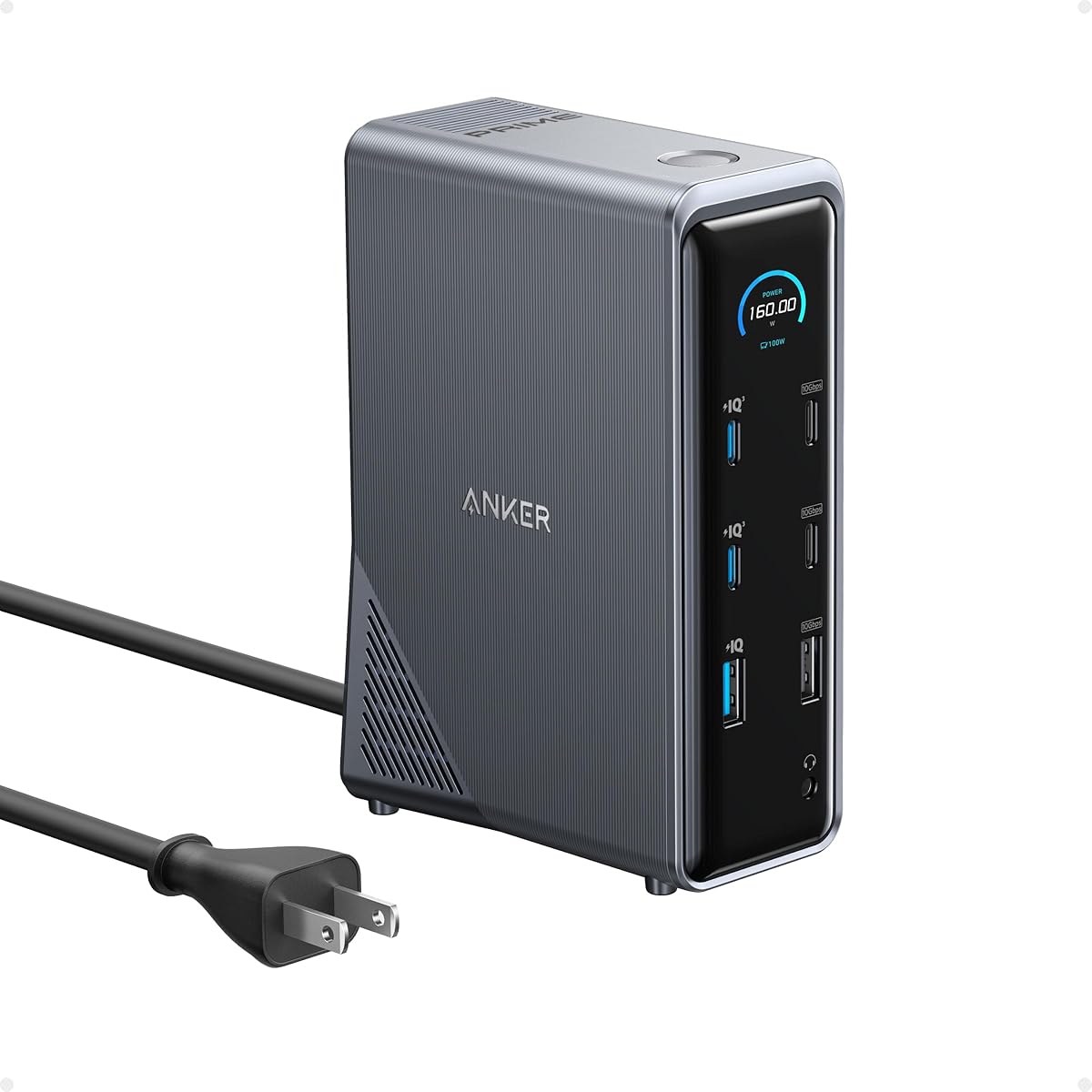
This Anker Prime model focuses on high power delivery with 160W total output. It supports dual 4K displays and offers many ports for data transfer. The design is sleek and manages heat well during intensive use.
We may earn a commission when you buy through this link, at no additional cost to you.
You can charge up to four devices simultaneously through its ports. USB speeds reach up to 10Gbps for quick file access. The LED indicators help you monitor power usage and device connections.
It does not support triple screens like some competitors. Also, macOS users are limited to mirroring on external monitors. Linux is not supported at all. These constraints limit its use for specific environments.
Choose this if power and data speed are your top priorities. It is great for laptops that need significant charging power. The 14-in-1 setup covers almost every peripheral you might need.
160W total output ensures all devices charge quickly. Charge up to four devices without needing separate adapters.
10Gbps data transfer speeds enable rapid file access. Perfect for large media files or backups connected to the dock.
We may earn a commission when you buy through this link, at no additional cost to you.
This Acer station uses DisplayLink to support triple 4K screens at 60Hz. It comes with a strong 130W power adapter for reliable charging. The 10Gbps USB-C port ensures fast data transfer for connected drives.
We may earn a commission when you buy through this link, at no additional cost to you.
It works well with Windows and newer macOS versions when the driver is installed. The mix of HDMI and DisplayPort gives flexible display options. It also includes Ethernet and card readers for complete connectivity.
Driver setup adds an extra step to installation. Also, streaming protected video content may face black screen issues. These are common limitations with DisplayLink tech but do not affect general work.
Buy this if you need triple screens with high resolution. It is ideal for designers or analysts needing clear visuals. The included adapter and cable make setup straightforward and secure.
Run three 4K displays at 60Hz smoothly. Perfect for detailed graphic work or multi-chart analysis.
10Gbps USB-C port supports fast file movement. Great for external SSDs or high-speed networking needs.
We may earn a commission when you buy through this link, at no additional cost to you.
This TobenONE station offers 18 ports and four HDMI outputs for huge expansion. It uses DisplayLink to support up to four screens on Windows. The 120W power adapter provides robust charging for laptops.
We may earn a commission when you buy through this link, at no additional cost to you.
It supports Thunderbolt 5 and USB4, ensuring compatibility with modern laptops. You get multiple USB-A and USB-C ports for all your peripherals. The front ports can charge phones while your laptop charges.
It requires DisplayLink driver installation for full functionality. Also, it does not support Linux or Unix systems. Mac users are limited to three screens instead of four. Still, it is powerful for Windows workflows.
Choose this if you need maximum ports and screen support. It fits complex setups requiring many peripherals. The warranty and technical support ensure you get help if issues arise.
Eighteen ports cover every peripheral need. Connect phones, storage, and monitors all at once.
Compatible with USB4 and Thunderbolt 5. Future-ready for new laptop releases and high-speed data.
We may earn a commission when you buy through this link, at no additional cost to you.
This Plugable station is designed for enterprise environments and hybrid teams. It supports three HDMI displays with DisplayLink technology and 100W charging. The build quality is durable and suitable for shared workspaces.
We may earn a commission when you buy through this link, at no additional cost to you.
It works well with Apple Silicon laptops that need external screens. You get six USB 3.0 ports for many peripherals. The support team is US-based and provides lifetime technical help.
Drivers are required for macOS and Chrome OS. Also, it is not compatible with Linux systems. The price reflects the enterprise-grade support and build quality rather than home use.
Buy this for office deployments needing reliability. It is ideal for managed IT environments. The lifetime support ensures long-term value for your organization's infrastructure.
Designed for IT deployment and hot-desking. Trusted by professionals worldwide for stability.
Three HDMI outputs enable extensive multitasking. Perfect for analyzing data across multiple monitors.
We may earn a commission when you buy through this link, at no additional cost to you.
This Anker 13-in-1 station features a vertical design that saves desk space. It supports triple displays on Windows and includes a 135W power adapter. The 10Gbps data speed handles fast file transfers well.
We may earn a commission when you buy through this link, at no additional cost to you.
You get multiple USB-C and USB-A ports for various devices. The HDMI and DisplayPort outputs enable dual or triple screen setups. It fits easily in bags for travel use.
Mac users are limited to mirroring on multiple screens. Linux is not supported at all. The vertical design is compact but may be less stable for very heavy loads.
Choose this for small desks needing multi-screen support. It is great for laptops that need a small footprint. The included adapter ensures you are ready to use it right out of the box.
Compact vertical design saves desk space. Perfect for crowded workspaces or portable setups.
Extend your workspace to three screens on Windows. Great for multitasking across many applications.
We may earn a commission when you buy through this link, at no additional cost to you.
This Dell Pro dock supports up to four high-res displays with 100W power delivery. It uses sustainable materials and reduces power consumption significantly. The design is robust with a durable USB-C connector.
We may earn a commission when you buy through this link, at no additional cost to you.
It manages power efficiently and supports modern Dell and non-Dell PCs. The ambidextrous cable allows flexible routing on the desk. It fits well into corporate environments focused on sustainability.
It may have fewer peripheral ports listed compared to others. The price point is higher reflecting enterprise quality. Also, it focuses on manageability and power delivery more than port count.
Choose this for corporate or sustainable work setups. It is ideal for companies needing reliable management. The warranty and support ensure long-term use and minimal disruption.
Built with recycled materials for eco-friendly use. Reduces power consumption during standby modes.
Supports up to four high-res displays. Ideal for complex workloads needing large virtual workspaces.
We may earn a commission when you buy through this link, at no additional cost to you.
This Anker Prime model provides triple 4K displays with DisplayLink technology. It includes a smart display screen for monitoring performance. The 140W upstream power delivers fast charging for laptops.
We may earn a commission when you buy through this link, at no additional cost to you.
You get multiple USB ports, HDMI, and DisplayPort for versatile use. The fan cooling keeps the dock cool during high loads. It is suitable for Windows users needing extended screens.
Driver installation is required and DRM streams may show black screens. The smart display can be confusing to some users. Still, it offers a great balance of features and reliability.
Choose this if you need triple screens and power charging. It is ideal for workstations needing monitoring. The warranty ensures help if you face driver issues or technical problems.
Smart display screen shows charging and cooling info. Gives real-time control over dock performance and settings.
Triple 4K display support boosts productivity. Perfect for multitasking across three large monitor screens.
We may earn a commission when you buy through this link, at no additional cost to you.
Choosing the right docking station requires understanding your laptop and display needs. This guide covers key factors to help you select the best HDMI docking station.
Check how many monitors the dock supports and at what resolution. Some docks offer dual HDMI while others offer triple or quad screens via DisplayLink or MST. Ensure the dock matches your workflow.
Always verify resolution limits like 4K or 1080p at 60Hz. Higher resolutions need better bandwidth and support.
Look for docks with enough Power Delivery to charge your laptop. Most high-performance models offer 100W or more. This prevents battery drain during intensive multitasking or heavy use.
Ensure the upstream cable supports PD charging. Without a proper cable your dock may charge peripherals but not your laptop.
Choose a dock with enough USB-A and USB-C ports for your peripherals. If you use storage drives or keyboards, more USB ports are better. Also check for SD card slots or Ethernet.
Prioritize USB-C ports with data transfer speeds. 10Gbps speeds help with fast file access. Avoid hubs limited to slower USB 2.0 speeds for critical data.
Confirm that the dock works with your operating system. Many docks support Windows well but limit macOS to mirroring. Linux may require drivers or lack support entirely.
Some docks use DisplayLink drivers to enable more screens. Always check if driver installation is needed before buying.
Pick a dock made of durable materials like aluminum. Good heat dissipation ensures stable performance during long sessions. Avoid plastic-only hubs that might overheat under load.
Also check for physical features like a security slot. This helps keep your dock safe in shared workspaces.
Make sure the included cable is long enough for your desk. Shorter cables may force your laptop too close to the monitors. Longer cables offer more flexibility in setup.
Check that the cable supports high data and power speeds. Poor cables limit dock performance even if the dock itself is good.
Look for brands that offer at least a 18-month warranty. Good support teams help troubleshoot driver or connection issues quickly. Avoid brands with limited customer service.
Check if the brand provides online manuals or guides. Self-help resources save time if you face setup problems.
Compare price against features like number of ports and display support. More expensive models often have better build and support. But some budget models offer great value for basic needs.
Avoid buying cheap docks that lack key features. It is often better to spend slightly more for reliable performance.
Connect your laptop to the dock using the included USB-C cable first. Then attach monitors via HDMI or DisplayPort. Ensure cables are firmly plugged in to avoid flickering or disconnects.
Install any required drivers like DisplayLink before starting extended displays. This step is crucial for Windows and macOS systems needing extra screens. Always download drivers from the manufacturer's site.
Keep the dock in a well-ventilated spot to prevent overheating. Dust regularly with a soft cloth to maintain airflow. If the dock gets hot, reduce connected device load or check power settings.
Yes, many docking stations support triple or quad monitors using DisplayLink or MST technology. Check if your laptop supports these features. Some systems may need drivers or hardware updates.
Yes, use the provided USB-C cable rated for Power Delivery. Other cables may support data but not charging. Using the wrong cable can limit charging speed or stop it entirely.
Most docks work with Mac but may limit extended displays. Some need drivers to enable multiple screens. Check compatibility details before buying to avoid mirroring limits.
Streaming apps may show black screens due to DRM limitations. Turn off hardware acceleration in your browser to fix this. This applies to apps like Netflix when using DisplayLink.
Yes, most docking stations support USB-C Power Delivery to charge laptops. Check the wattage to ensure it matches your laptop needs. Some docks offer 65W or 100W pass-through.
Absolutely, docking stations offer multiple ports for peripherals. You can connect keyboards, drives, and webcams easily. Use USB-C ports for fast devices and USB-A for legacy ones.
We reviewed ten top docking stations offering triple or quad screen setups. Each model balances power charging and port variety for professionals.
Prioritize display support and OS compatibility when choosing a dock. Ensure the power delivery meets your laptop needs.
Check current prices and availability before buying. Prices may change so verify details on the retailer page.